Skip to Content

Welcome!

Share and discuss the best content and new marketing ideas, build your professional profile and become a better marketer together.

Sign up

You need to be registered to interact with the community.
This question has been flagged
1 Reply
59 Views

Hi, this might be a minor thing but has some usefulness for user experience... does anyone know how to set the Optional field property in Odoo Studio to be neither "Show by default" or "Hide by default," meaning, it's left blank (like the screenshot on the right)? As of now, you can't choose blank.

The reason why I'm asking is that I noticed that default list columns that cannot be hidden (by selecting that upper right column selector on view tables) have no Optional value set. See below example (for PO Form's Unit Price column in the items list) behavior if the Optional field is blank like above right.


Stupid as it may seem, but some users would get confused if they accidentally hid the field (and don't know how to make it appear. So better not to allow anyone choose to hide some fields in a list (like what Odoo has made on key columns, like Unit Price and Quantity in PO forms.

Help on a workaround is very much appreciated. I'm using Odoo Online (v18.4e).


Avatar
Discard

Hi,

Studio does not allow you to do this directly but you can do it if you are familiar with developer mode and XML.

Here's a work around for this using Studio since it is not natively supported by Studio:

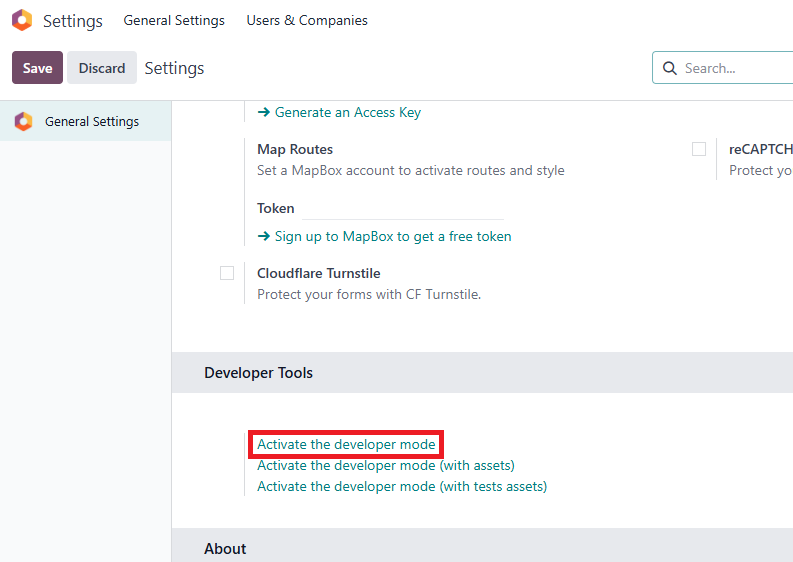
  1. Activate Developer Mode (Settings > General Settings).
  2. Open the view in Studio and go to the field you want to edit like you normally do.
  3. Change the value of "Optional" so Studio generates the XML for the customization.
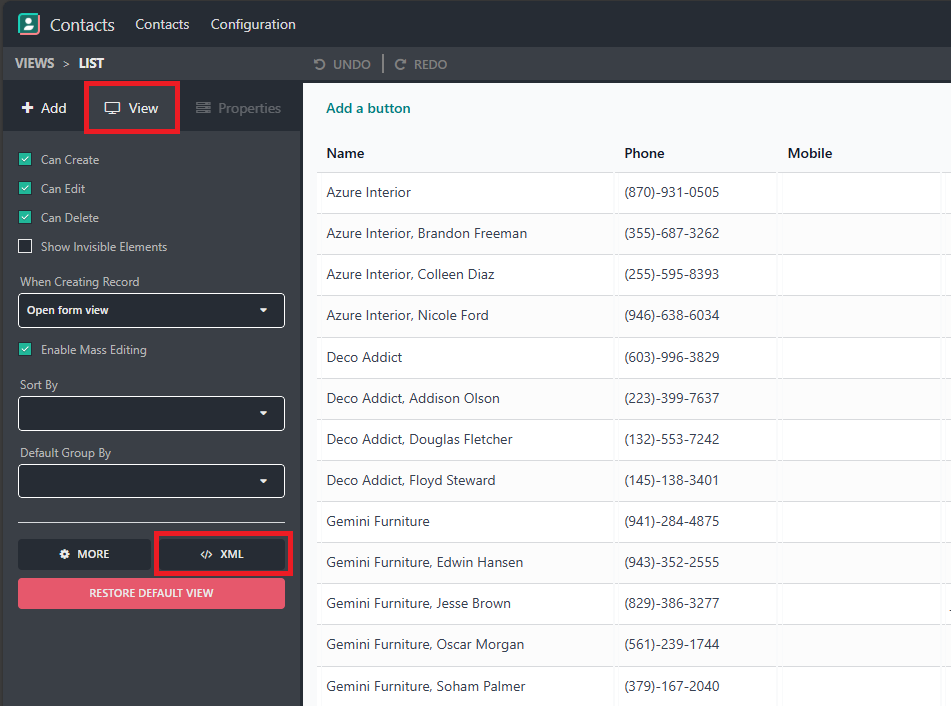
  4. Click on the "View" tab on the left and then on the "XML" button like so.
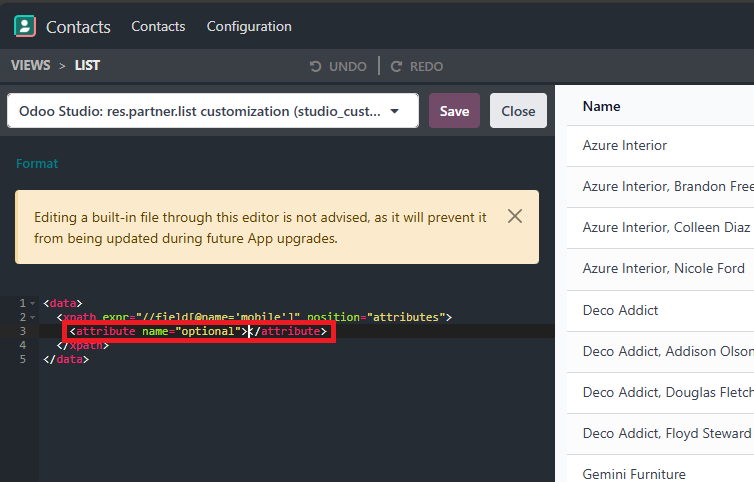
  5. This will open the XML of the customization. Look for the part where the "optional" property of the field is changed and remove the value within the tag like so to leave it empty.
  6. Save the changes.

Your field will now be permanently visible and will be removed from the list of fields on the right.

NOTE: Make sure you are making the edits in a view whose name starts with "Odoo Studio: ..." and not one of Odoo's built in views.

Avatar
Discard

Your Answer

Please try to give a substantial answer. If you wanted to comment on the question or answer, just use the commenting tool. Please remember that you can always revise your answers - no need to answer the same question twice. Also, please don't forget to vote - it really helps to select the best questions and answers!