Skip to Content

Welcome!

Share and discuss the best content and new marketing ideas, build your professional profile and become a better marketer together.

Sign up

You need to be registered to interact with the community.
This question has been flagged
1 Reply
40 Views

We have a website in Odoo 17 that has two languages: Dutch and French 


I use uploads to upload the information in the different languages. Such as the name of the product, the description, and the "Description for the website". 

This works fine for the name and description, but not for the "Description for the website". This is a HTML text that I upload. Everytime I upload one language, this language replaces the other language. 


eg. I upload the "Description for the website" in French, now also the texts on the dutch website have been replaced by the french text. 

Is there a way I can use the upload to also upload translations / different languages for HTML elements such as the "Description for the website"? 

Avatar
Discard

To import translations of 'content', i.e. the ecommerce description of a Product (but pretty much any other information, given the field is ready for multiple languages) you can do this:

  1. Create or import your products in your 'core' language, for example by using a CSV or XLSX file as you would do normally.
    A highly simplified (but working one) looks like this:

    id

    name

    description_ecommerce


    my english product name

    my <b>english</b> <u>html</u> ecommerce description

    Once you have your products in place,

  2. Enable the Developer mode (debug mode): https://www.fcc.gov/general/opening-csv-file-excel (all this is yet another reason why you may consider downloading a PO file and using Poedit)

  3. Once the CSV is correctly opened, you will find seven columns, where column E ('src') and F ('value') are the most important. E holds the original value, F holds the translated value (or is empty, in case no translation has been set yet):

    Go ahead and add your translations to the file, then save it as a CSV (comma(!)-separated)

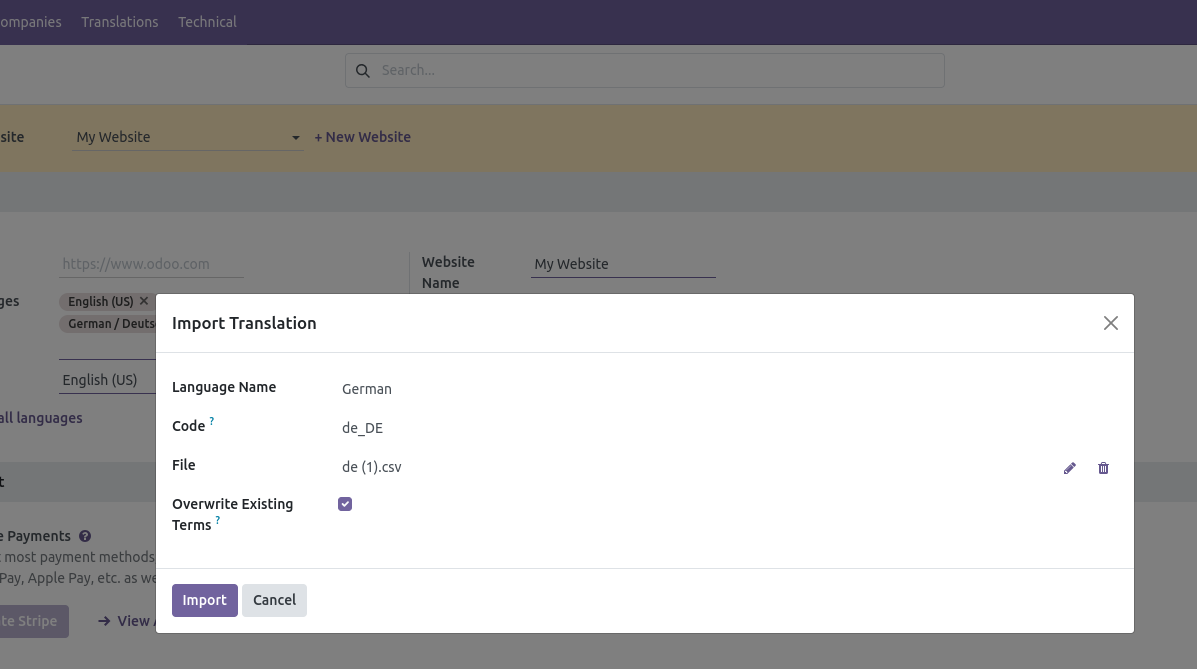
  4. Finally, go back to Odoo (close the 'Export Complete' wizard if you haven't already 🤡), navigate to Settings -> Translations -> Import/Export --> Import Translations:
    • Language Name: [the name of the language] (i.e. German)
    • Code: [the Locale Code of the language] (i.e. de_DE) - see Settings -> Translations -> Languages for the correct Locale Code
    • File: well, your CSV file
    • Overwrite Existing Terms: Active by default but depends on your needs (hover the question mark for details on it)
      and hit Import:


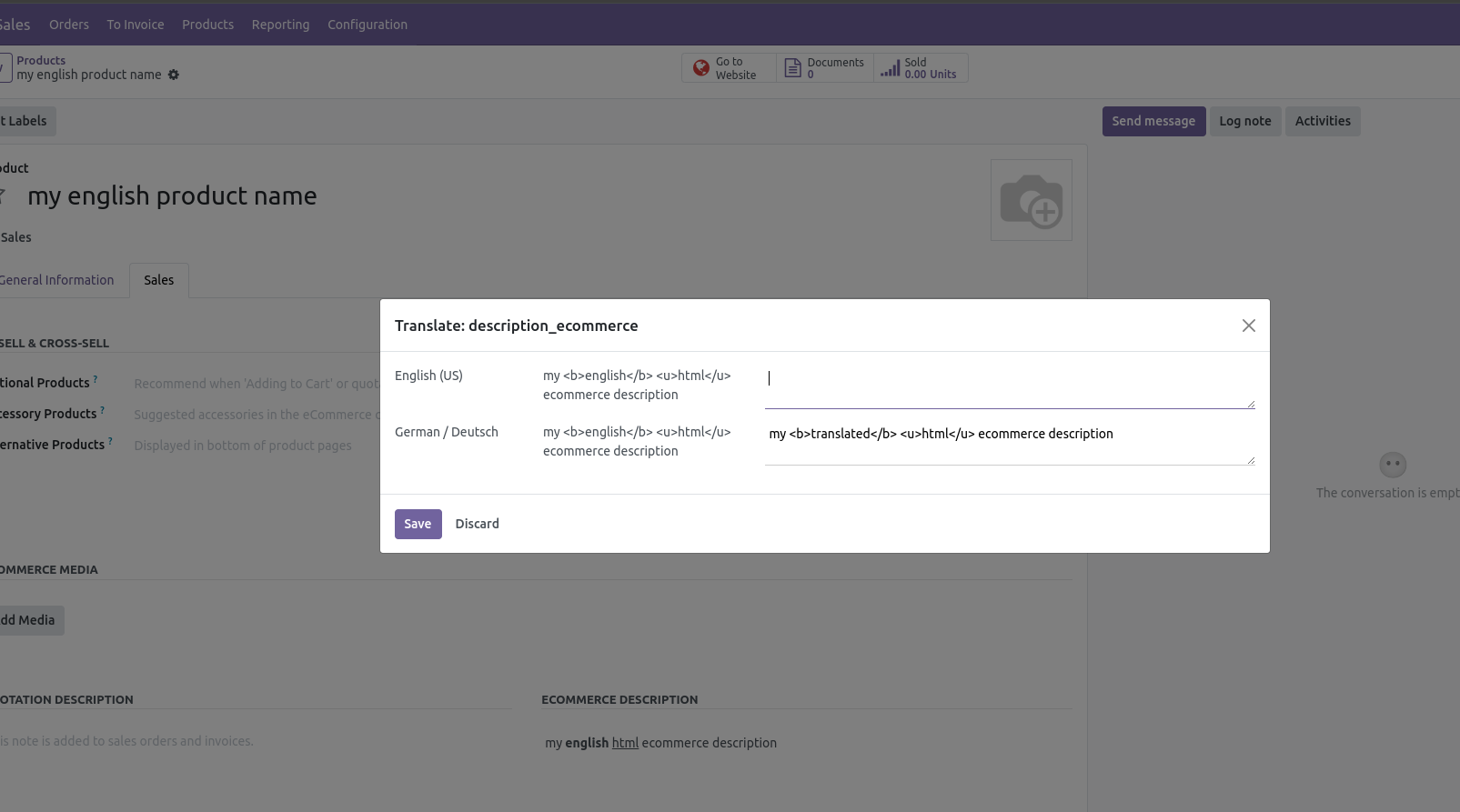
Once done, you can verify the result in the Product's form:


Avatar
Discard

Your Answer

Please try to give a substantial answer. If you wanted to comment on the question or answer, just use the commenting tool. Please remember that you can always revise your answers - no need to answer the same question twice. Also, please don't forget to vote - it really helps to select the best questions and answers!